
Ödev ve Sınav Hazırlama
Ödev/sınav oluşturma
Ödev ve sınavlar her zaman bir dersin içinde oluşturulur. Bu sayfa, derse yeni bir ödev/sınav eklemenin ilk adımını — başlık ve açıklama girip öğrencilere atamayı — anlatır. Soruların eklenmesi ve sayfa bölgelerinin işaretlenmesi sonraki bölümlerde ele alınır.
Başlamadan önce
Bir ödev/sınav oluşturmak için önce ilgili dersin detay sayfasında olmanız gerekir. Sol menüden Ödevler/Sınavlar sekmesine geçin ve sağ üstteki Oluştur düğmesine tıklayın.
Öğretmen yetkisi yeterlidir
Yeni ödev/sınav dialogu
Açılan dialogda iki adımlık bir ilerleme çubuğu görünür: 'Ödev/Sınav Oluştur' ve 'Öğrencilere Ata'. İlk adımda başlık, açıklama ve isteğe bağlı olarak 'Derse kayıtlı tüm öğrencilere ata' seçeneği yer alır.
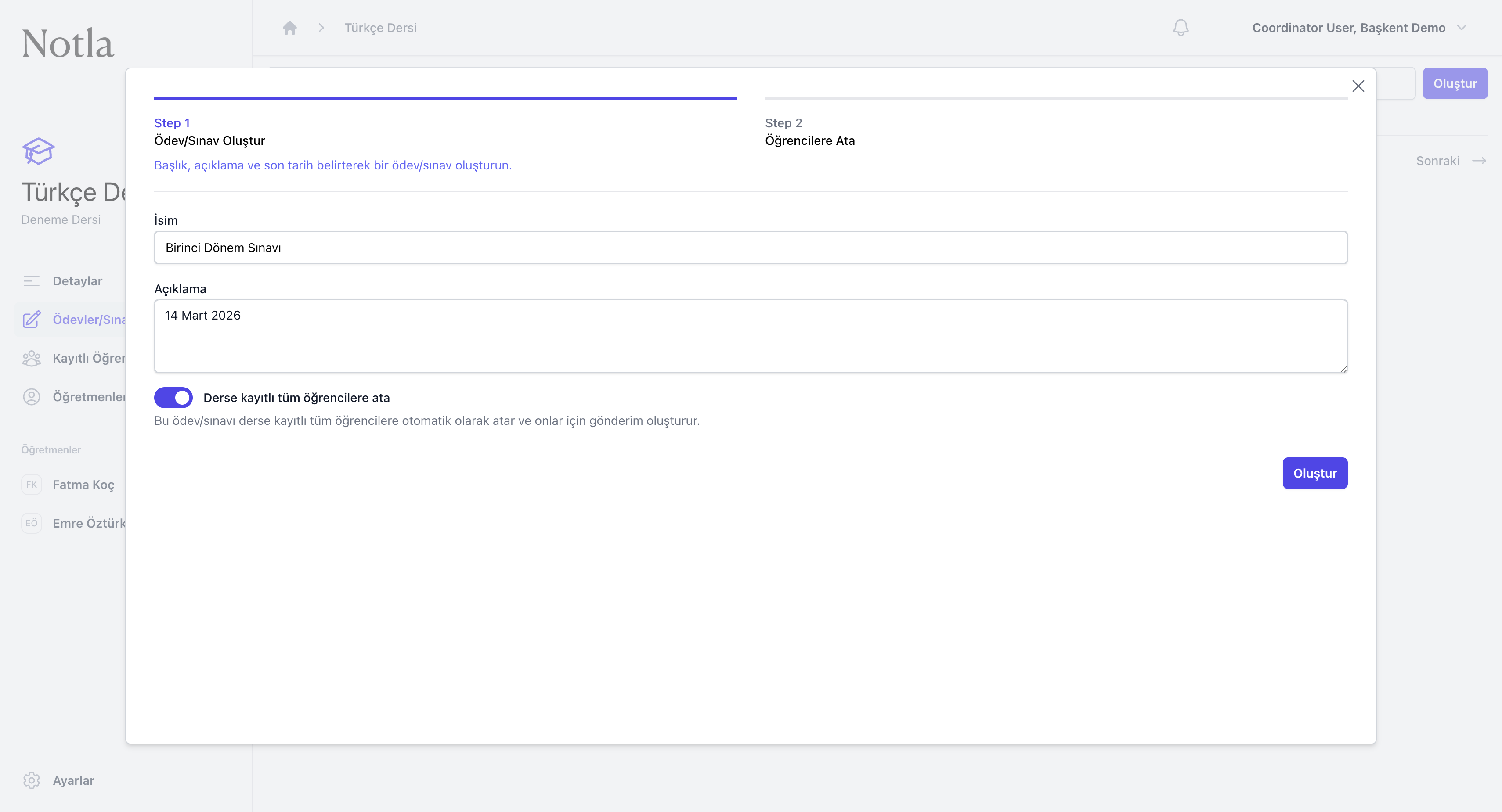
- İsim alanı zorunludur. Öğrencilerin görüntüleyeceği başlık burada belirlenir (örnek:
Birinci Dönem Sınavı,Performans Ödevi). - Açıklama kısa bir açıklama veya tarih (örnek:
14 Mart 2026) için kullanılır. Yine isteğe bağlıdır. - Derse kayıtlı tüm öğrencilere ata anahtarı açıkken bu ödev/sınav otomatik olarak ders rosterindeki tüm öğrencilere atanır ve onlar için boş gönderim yer tutucuları oluşturulur. Daha sonra eklenen öğrenciler de bu listeye otomatik dahil olur.
- Oluşturdüğmesine bastığınızda Adım 2 (Öğrencilere Ata) açılır. Eğer "tüm öğrencilere ata" anahtarını açık bıraktıysanız bu adım hızlıca otomatik tamamlanır; isterseniz tek tek öğrenci de seçebilirsiniz.
Temel bilgileri düzenleme
Ödev/sınav oluşturulduktan sonra her zaman 'Ödev/Sınav Oluştur' adımına geri dönüp başlık, açıklama veya öğrenci atama ayarlarını güncelleyebilirsiniz. Aynı sayfanın altında ödev/sınavı tamamen silmek için tehlike alanı yer alır.
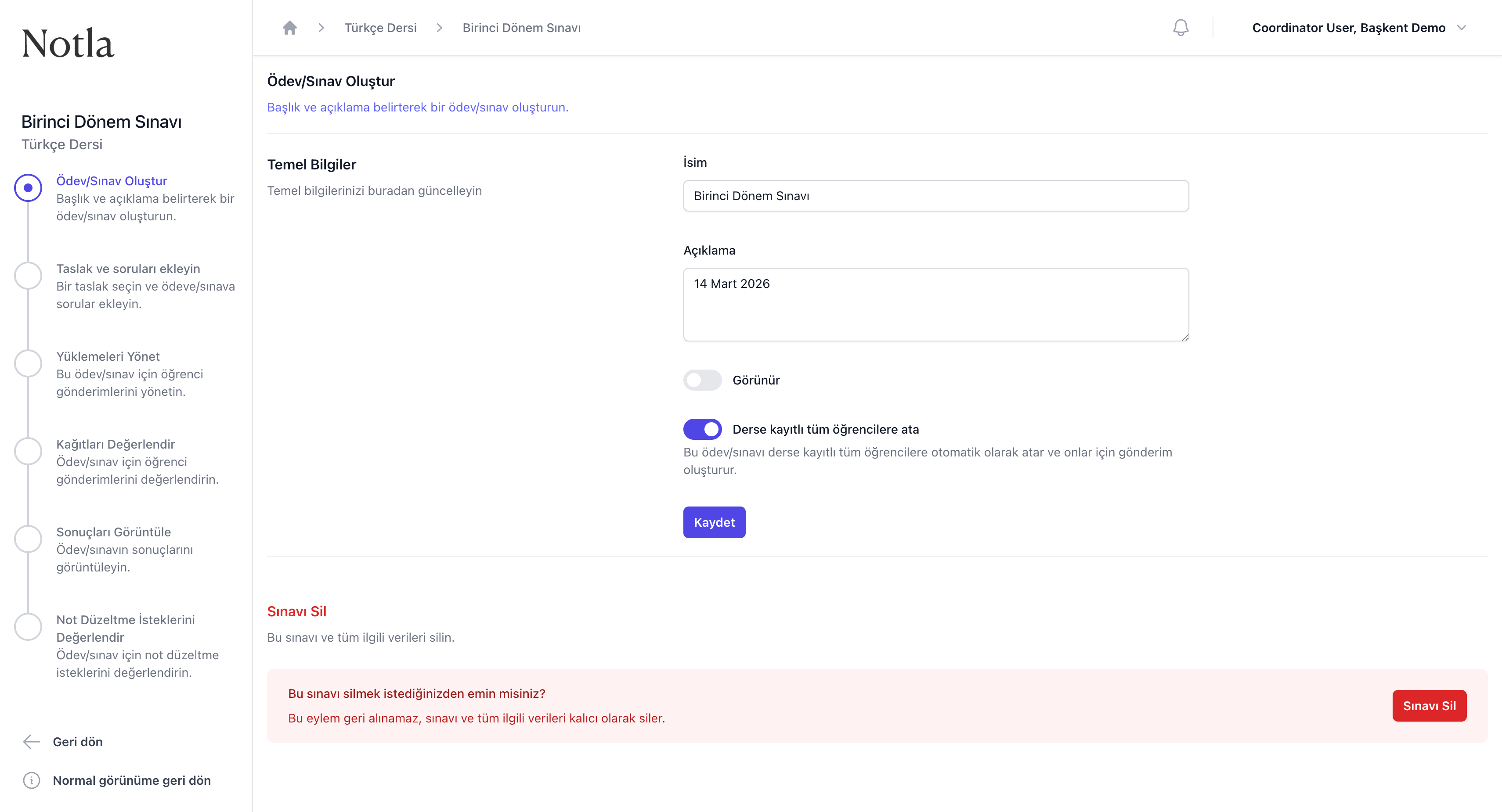
- Sol menüde ödev/sınava özel bir sihirbaz görünür: Ödev/Sınav Oluştur, Taslak ve soruları ekleyin, Yüklemeleri Yönet, Kağıtları Değerlendir, Sonuçları Görüntüle, Not Düzeltme İsteklerini Değerlendir. İlerlerken bu adımlar tek tek işaretlenir.
- Görünür anahtarı kapalıyken ödev/sınav sadece size görünür; tüm hazırlıklar tamamlanınca açın. Açıldığında öğrencilere atanmış kağıtlar gönderilebilir.
- Sınavı Sil bölümü sayfanın en altında tehlike alanı olarak yer alır. Bir kez silinen ödev/sınav ve ona ait tüm öğrenci gönderimleri geri getirilemez.
- Sayfanın üst kısmındaki ekmek kırıntıları (breadcrumb) ile dersin ana sayfasına dönebilirsiniz:
Türkçe Dersi > Birinci Dönem Sınavı.
Sonraki adım
Temel bilgileri kaydettikten sonra sıra bir taslak yükleyip soruları tanımlamaya gelir. Sol menüden Taslak ve soruları ekleyin adımına geçin veya doğrudan Taslak ve soruları ekleme bölümüne ilerleyin.