
Notlandırma ve Sonuçlar
Otomatik notlandırma ayarları
Notla'nın yapay zekâ destekli notlandırması her soru için ayrı ayrı yapılandırılır. Bu sayfada AI'a verilen talimatları, güven eşiklerini ve önizleme limitlerini nasıl ayarlayacağınızı, hangi soruların otomatik notlandırılacağını nasıl seçeceğinizi göreceksiniz.
Genel bakış
Otomatik notlandırma sayfasına ulaşmak için sol menüdeki Kağıtları Değerlendir adımına geçin ve sağ üstte yer alan Otomatik Notlandırma: Başlamadı bağlantısına tıklayın. Açılan sayfa iki bölüme ayrılır: AI yapılandırma alanı ve otomatik notlandırılacak soruların seçim listesi.
AI talimatları
Talimatlar bölümü, AI'a o sorunun nasıl değerlendirileceğine dair açık bir komut yazmanızı sağlar. Soruda kabul edilebilecek alternatif yanıtlar, hangi durumlarda kısmi puan verileceği veya gözardı edilmesi gereken yazım hataları gibi ipuçlarını burada belirtin.
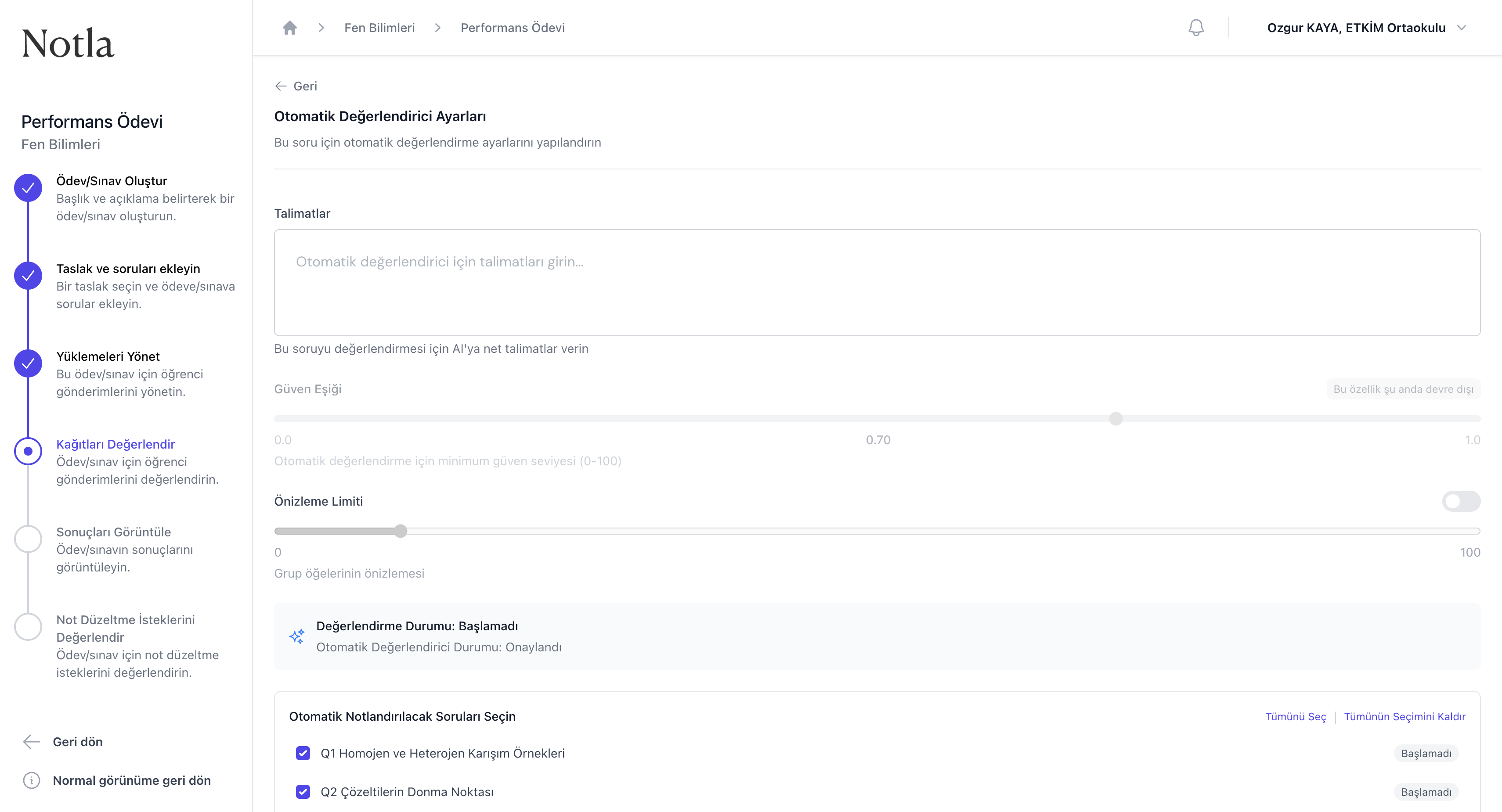
- Talimatlar alanı boş bırakılırsa AI yalnızca soru başlığını ve değerlendirme kriterlerini referans olarak alır.
- Net, kısa ve örnek odaklı talimatlar tutarlı sonuçlar üretir (örnek: "Heterojen örnekleri kontrol et; çay-su, yağ-su gibi cevaplar kabul edilir; sınıf adı yazılmışsa geçersiz say.").
- Değerlendirme Durumu kutusu, ayarın o anki durumunu (Başlamadı, İşlem Devam Ediyor, Tamamlandı) gösterir. Otomatik Değerlendirici Durumu: Onaylandı ise modelin kullanıma hazır olduğunu doğrular.
Güven eşiği ve önizleme limiti
Aynı sayfada talimatın altında iki slider yer alır:
- Güven Eşiği(0–1 arası, varsayılan 0.70): AI'ın bir notlandırmaya bu eşiğin altında güveniyorsa onu "İnceleme Gerekli" olarak işaretler ve elle kontrol bekletir. Yüksek eşik daha çok manuel inceleme, düşük eşik daha çok otomatik karar demektir.
- Önizleme Limiti (0–100 arası, kapatılabilir): otomatik notlandırma çalıştırılmadan önce kaç tane grup öğesinin önizlenmesine izin verileceğini sınırlar; küçük sınıflarda hızlı bir doğrulama için yararlıdır.
Önizleme limiti devre dışı
Hangi sorular otomatik notlandırılacak?
Sayfanın alt bölümünde 'Otomatik Notlandırılacak Soruları Seçin' başlığı altında ödev/sınavın tüm soruları listelenir. Her birinin yanında bir onay kutusu ve mevcut durumu (Başlamadı, İşlem Devam Ediyor, Tamamlandı) görünür.
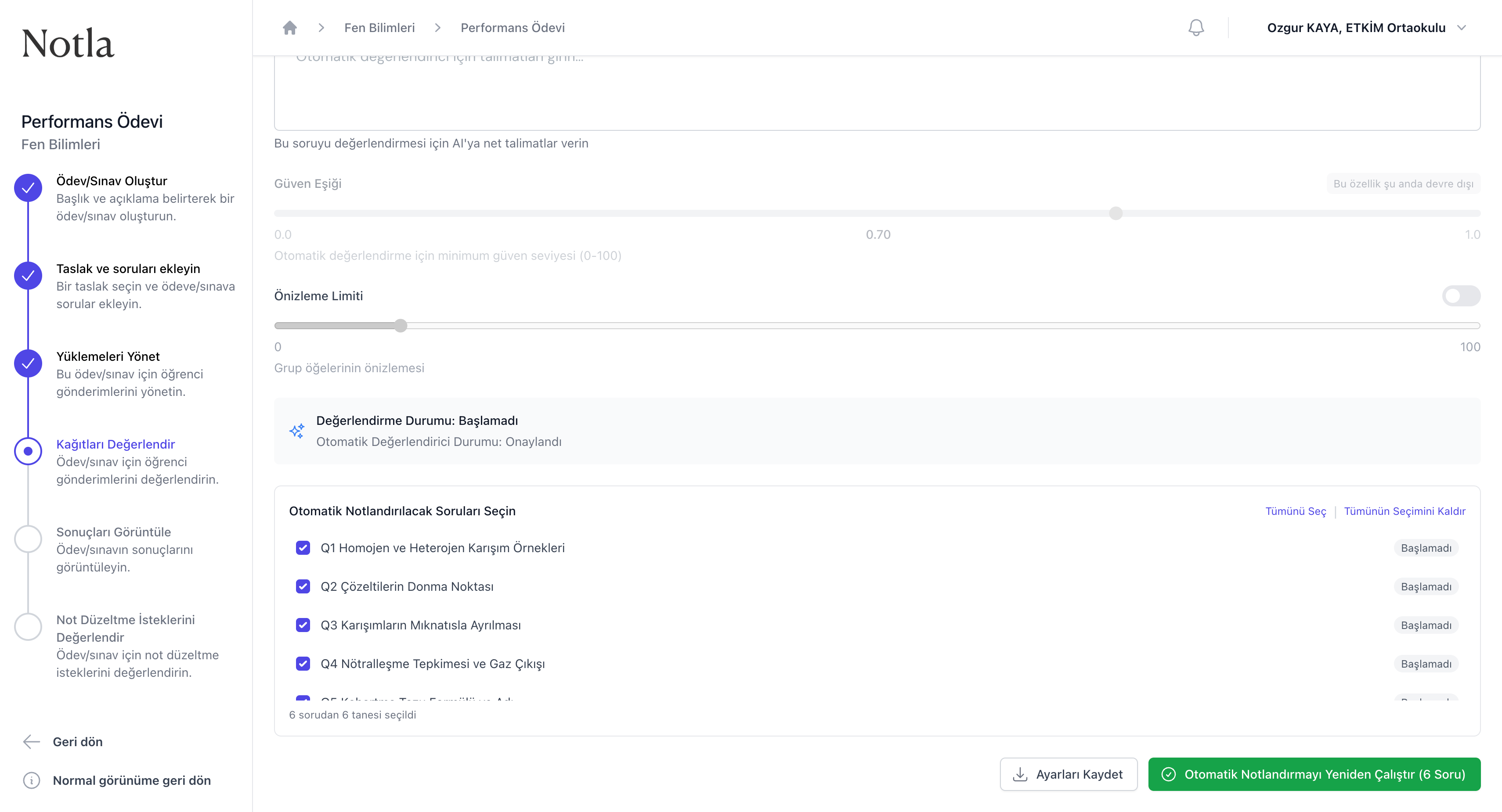
- Tümünü Seç ve Tümünün Seçimini Kaldır bağlantıları toplu seçim yapar.
- Her sorunun sağındaki durum rozeti önceki denemenin sonucunu özetler:
Başlamadı,İşlem Devam Ediyor,Tamamlandı. - Ayarları Kaydet değişiklikleri çalıştırmadan saklar; ileride hatırlamak için tercih edilir.
- Otomatik Notlandırmayı Yeniden Çalıştır (N Soru) seçili soruları yeniden işler; mevcut notlandırma sonuçları üzerine yazılır.
Otomatik notlandırmayı çalıştırma
Otomatik notlandırma başlatıldığında sayfada turuncu bir 'Otomatik değerlendirici ayarları işleniyor. Lütfen bekleyin.' uyarısı görünür ve seçilen soruların durumu 'İşlem Devam Ediyor' olarak güncellenir.
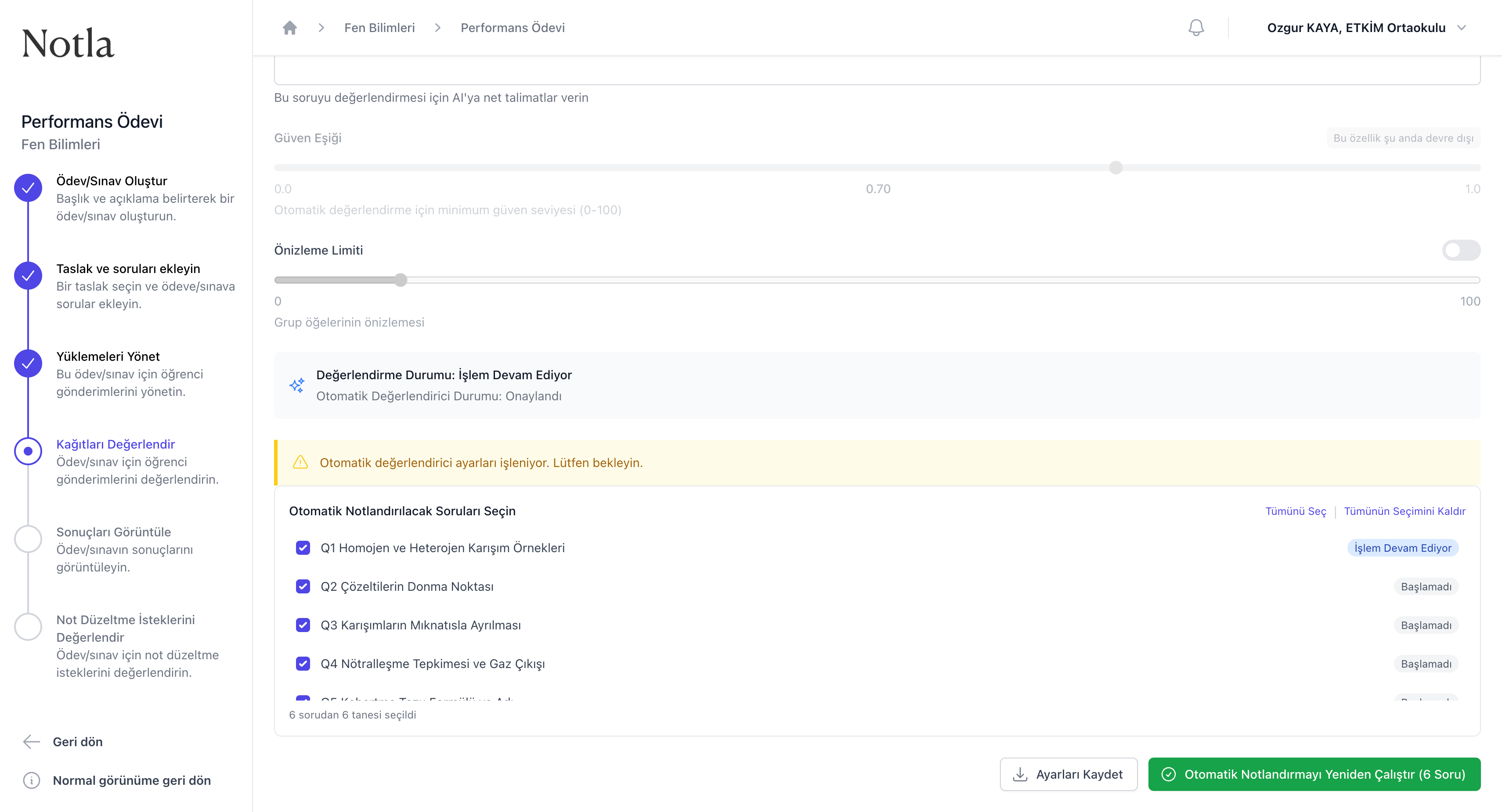
- İşlem süresi soru sayısı ve gönderim sayısına göre değişir; büyük sınıflarda birkaç dakikadan fazla sürebilir.
- İşlem sırasında diğer ayarları değiştirmek mümkündür ama yeni çalıştırma denemesi mevcut çalışmanın bitmesini bekler.
- Tamamlanan her soru için durum
Tamamlandıolarak güncellenir; Kağıtları Değerlendir sayfasına döndüğünüzde notlandırılan kağıtların ön izlemesini görebilirsiniz.
Önemli
Sonraki adım
Otomatik notlandırma tamamlandığında sıra sonuçları gözden geçirip elle düzeltme yapmaya gelir. Kağıtları değerlendirme bölümünden devam edin.