
Kullanıcı ve Ders Yönetimi
Ders yönetimi
Bir derse girdiğinizde sol menü, o dersle ilgili tüm bölümleri gösteren bir alt menüye dönüşür. Buradan dersin temel bilgilerine, ödev/sınavlarına, kayıtlı öğrencilerine ve öğretmenlerine kolayca ulaşabilirsiniz.
Ders detay sayfası
Detaylar sekmesi, dersin genel durumunu özetler: kayıtlı öğrenci sayısı, ödev/sınav sayısı ve dersin etkin olup olmadığı. Sol menüde dersin atanmış öğretmenleri ayrı bir başlık altında listelenir.
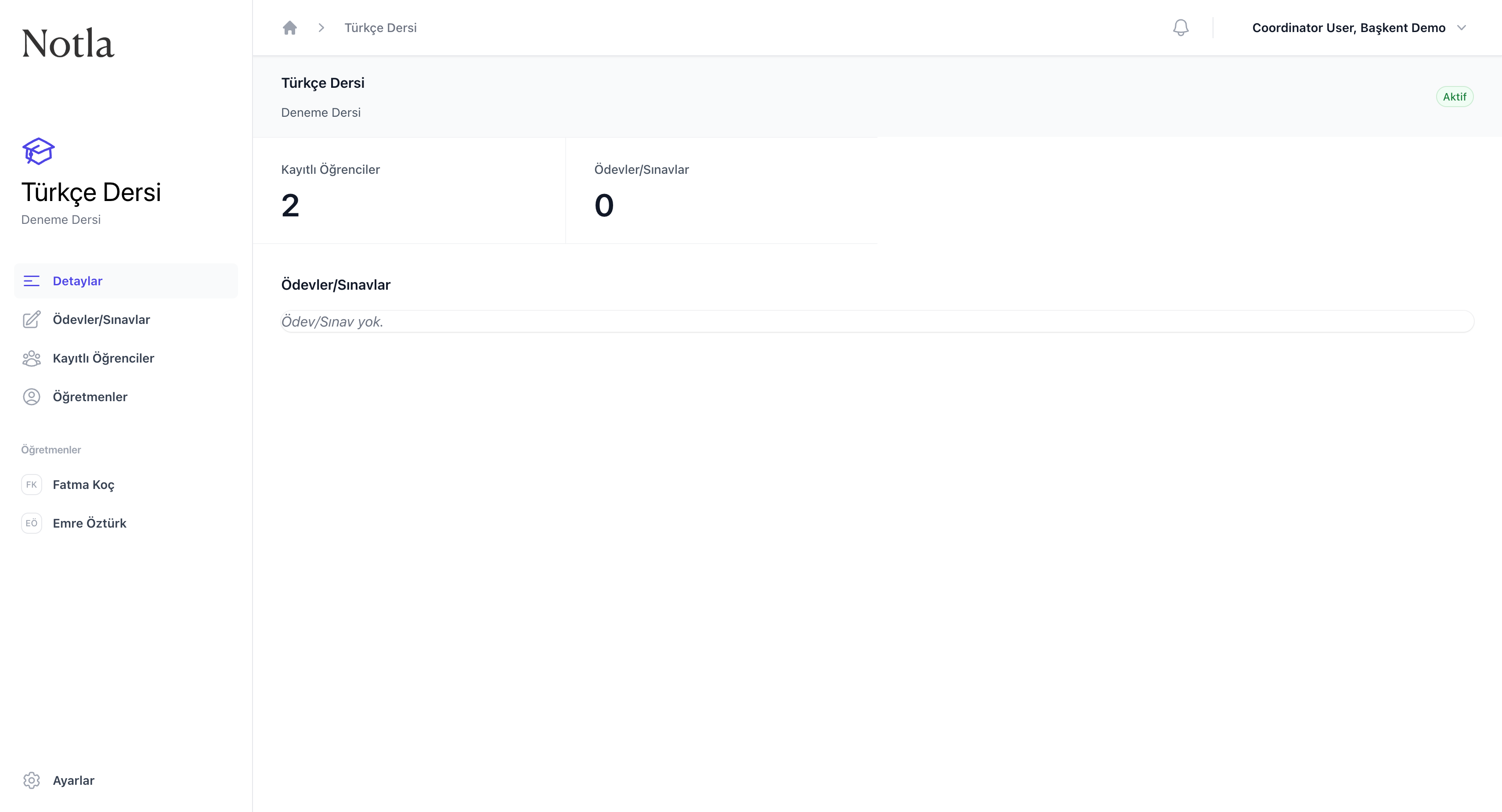
- Üst kısımdaki Aktif rozeti dersin yayında olduğunu gösterir; kapatıldığında öğrenciler yeni ödev/sınavları göremez.
- Kayıtlı Öğrenciler ve Ödevler/Sınavlar sayaçları dersin mevcut durumunu özetler. Sayaçlara tıklamak ilgili sekmeyi açar.
- Sol menü dört ana sekme içerir:
Detaylar,Ödevler/Sınavlar,Kayıtlı Öğrenciler,Öğretmenler. Bu sayfa boyunca hep yanınızda olur. - Sol alttaki Ayarlar bağlantısı dersin adını/açıklamasını değiştirme veya dersi silme gibi işlemleri içerir.
Ödev/sınav listesi
Ödevler/Sınavlar sekmesi, derse ait tüm ödev ve sınavları arama kutusu ve sayfalama ile birlikte listeler. Sağ üstteki Oluştur düğmesi yeni bir ödev/sınav eklemek için kullanılır.
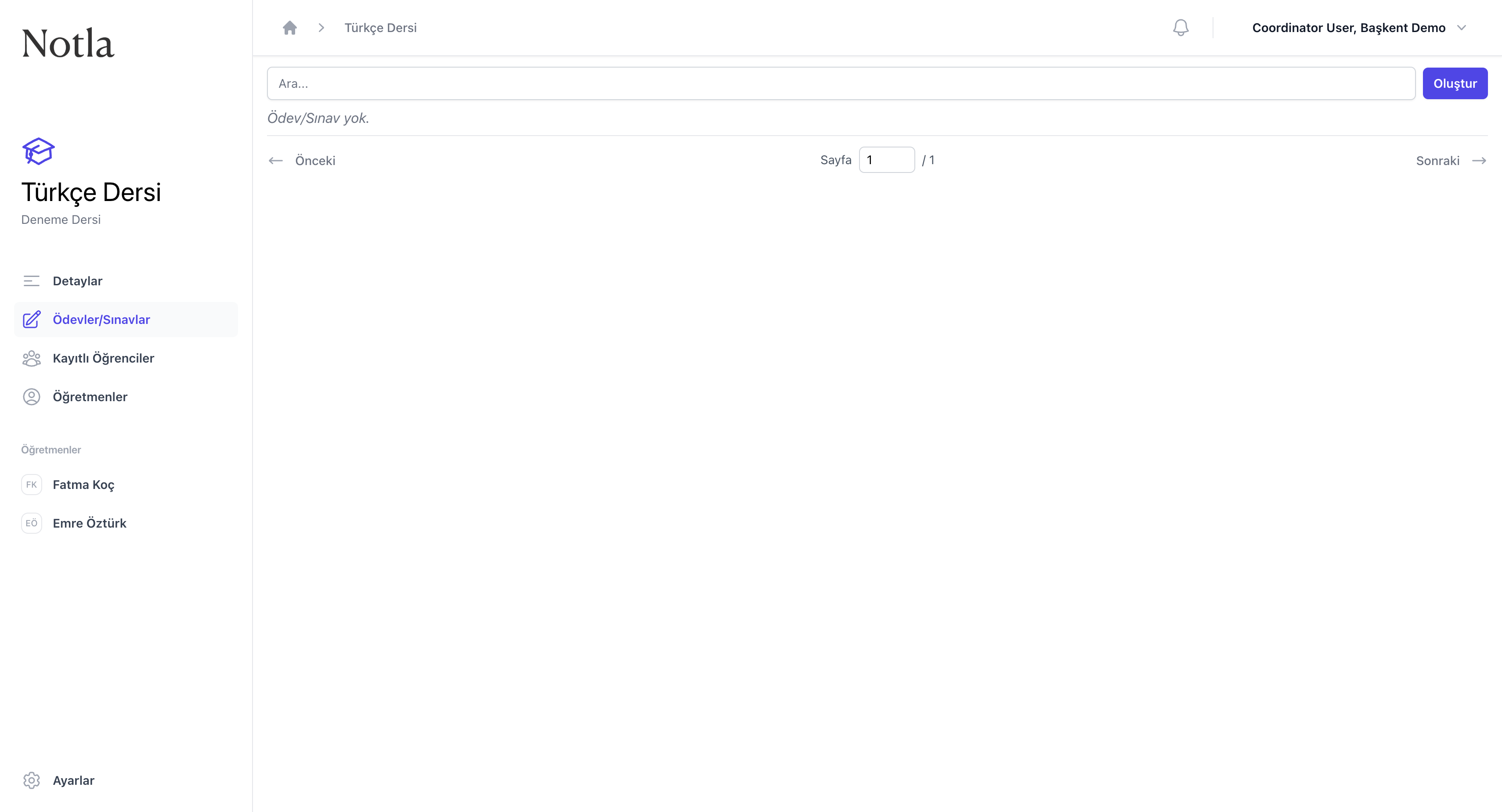
- Arama kutusu mevcut ödev/sınavları başlığa göre filtreler.
- Henüz ödev/sınav oluşturmadıysanız liste "Ödev/Sınav yok." mesajı gösterir.
- Yeni bir ödev/sınav oluşturmak için Ödev/sınav oluşturma adımına geçin.
Kayıtlı öğrenciler ve öğretmenler
Kayıtlı Öğrenciler sekmesi derse kayıtlı öğrencilerin tablosunu, Öğretmenler sekmesi ise derse atanmış öğretmenlerin tablosunu gösterir. Her iki tabloda da:
- Yeni bir kullanıcı eklemek için sağ üstteki
+ Ekledüğmesini kullanabilirsiniz. - Mevcut bir kullanıcıyı dersten çıkarmak için satırın sağındaki menüyü açıp Dersten çıkar seçeneğini seçebilirsiniz; bu işlem kullanıcıyı kurumdan silmez, yalnızca bu dersle bağlantısını koparır.
- Aynı anda birden çok kullanıcı eklemek için CSV içe aktarma akışı kullanılabilir; bu, ders oluşturma sihirbazındaki mantıkla aynıdır.
Yeni öğrenci eklendiğinde
Ayarlar
Ders ayarları, sol alttaki Ayarlar bağlantısı ile açılır. Buradan dersin adını, açıklamasını ve görünürlüğünü güncelleyebilir veya dersi tamamen silebilirsiniz.
Silme işlemi geri alınamaz