
Örnek Kullanım: Notlandırma Akışı
1. Ödev oluştur
Akış, ilgili dersin içinde yeni bir ödev/sınav oluşturarak başlar. Bu kayıt daha sonra taslak, öğrenci taramaları, otomatik değerlendirme ve sonuç sayfalarını birbirine bağlar.
Ödev/sınav oluştur
Ders sayfasında Ödevler/Sınavlar bölümünden Oluştur düğmesine basın. Açılan pencerede başlık, kısa açıklama ve öğrenci atama tercihini girin.
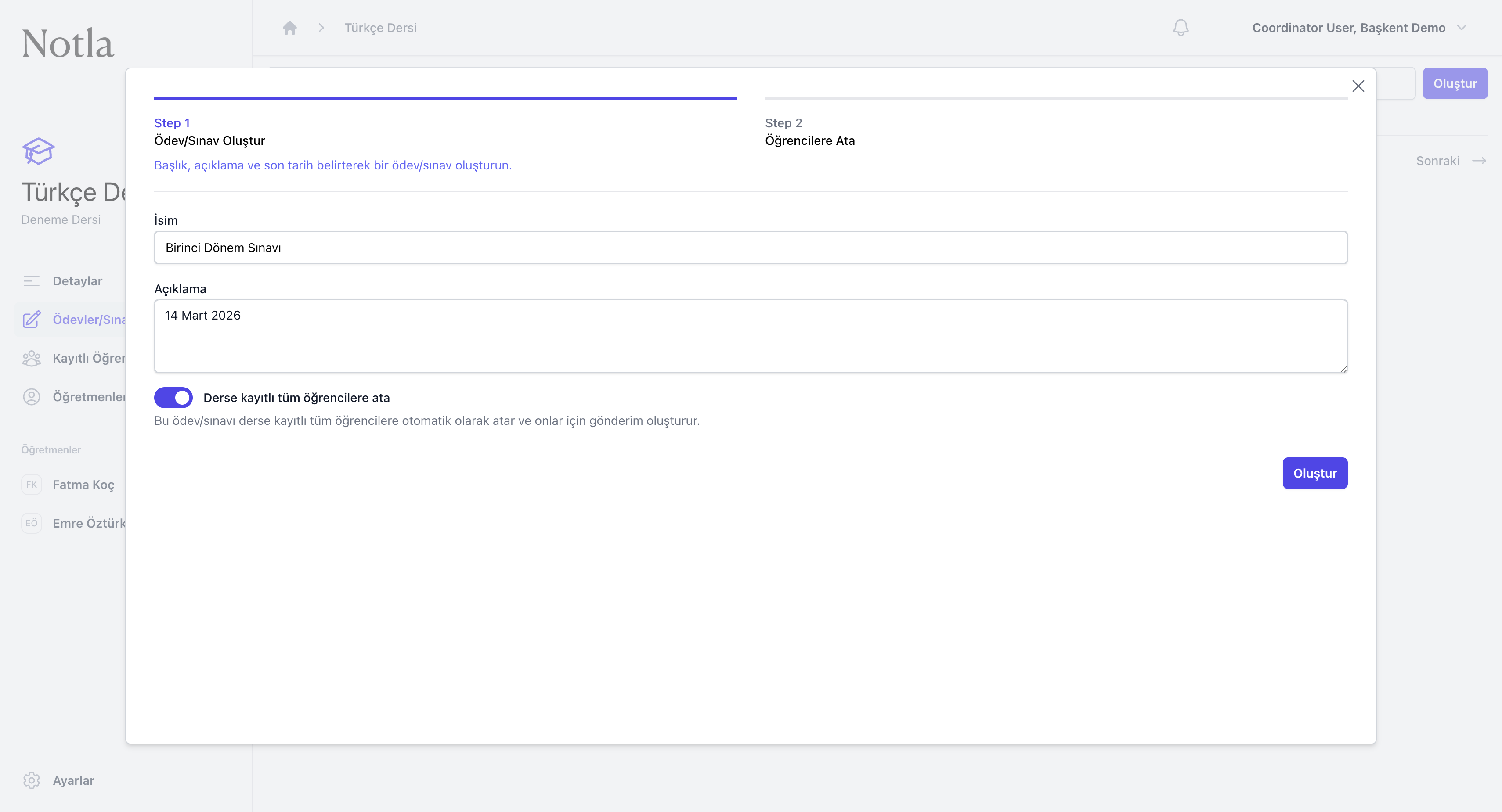
- İsim alanı zorunludur; öğretmen ve öğrencilerin göreceği ana başlık burada belirlenir.
- Açıklama alanına sınav tarihi, ünite adı veya kısa not gibi ayırt edici bir bilgi yazabilirsiniz.
- Derse kayıtlı tüm öğrencilere ata anahtarı açıksa sınıftaki tüm öğrenciler için gönderim kayıtları otomatik hazırlanır.
- Oluştur düğmesine bastıktan sonra bu ödev/sınavın hazırlık sihirbazına geçersiniz.
- Sıradaki adımda cevap anahtarı veya çözüm içeren taslağı yükleyip AI analizini başlatın.