
Örnek Kullanım: Notlandırma Akışı
3. Taramaları yükle
Taslak ve soru analizi hazır olduğunda öğrenci kağıtlarını sisteme aktarın. Notla yüklenen PDF'leri işler, sayfaları okur ve gönderimleri öğrencilerle eşleştirir.
Taramaları yükle
Yüklemeleri Yönet adımında Taramaları Yükle düğmesine basın. Öğrenci kağıtlarını içeren PDF'yi seçin; dosya listede göründüğünde Gönder ile işleme alın.
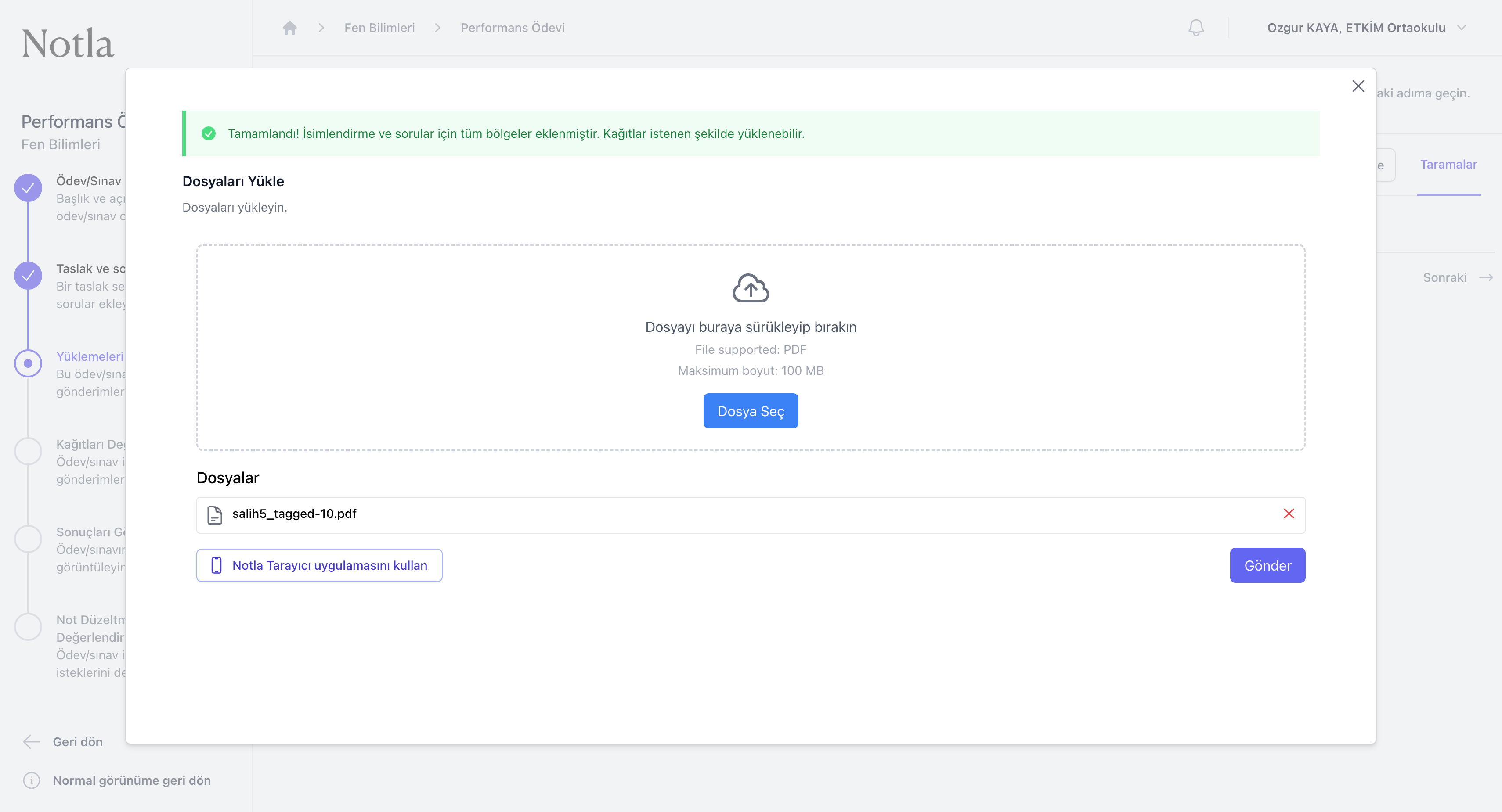
- PDF sınırı 100 MB'tır; birden fazla dosyayı aynı dialogdan ekleyebilirsiniz.
- Gönder düğmesi yüklemeyi başlatır; işlem bitince tarama öğrencilerle otomatik eşleşir.
- Mobil tarama gerekiyorsa sol alttaki Notla Tarayıcı seçeneğini kullanabilirsiniz; detaylar için Notla Tarayıcı bölümüne bakın.
- Taramalar işlenip öğrencilerle eşleştikten sonra otomatik değerlendirme adımına geçin.