
Örnek Kullanım: Notlandırma Akışı
4. Otomatik değerlendirmeyi başlat
Taramalar hazır olduğunda Notla'nın AI değerlendirmesini çalıştırın. Genellikle tüm soruları seçip varsayılan ayarlarla başlamak yeterlidir.
Sorular listesinden aç
Otomatik değerlendiriciye Kağıtları Değerlendir sayfasındaki soru listesinden gidilir. Sağ üstteki Otomatik Notlandırma bağlantısı, seçili ödev/sınav için AI değerlendirme ayarlarını ve çalıştırma ekranını açar.
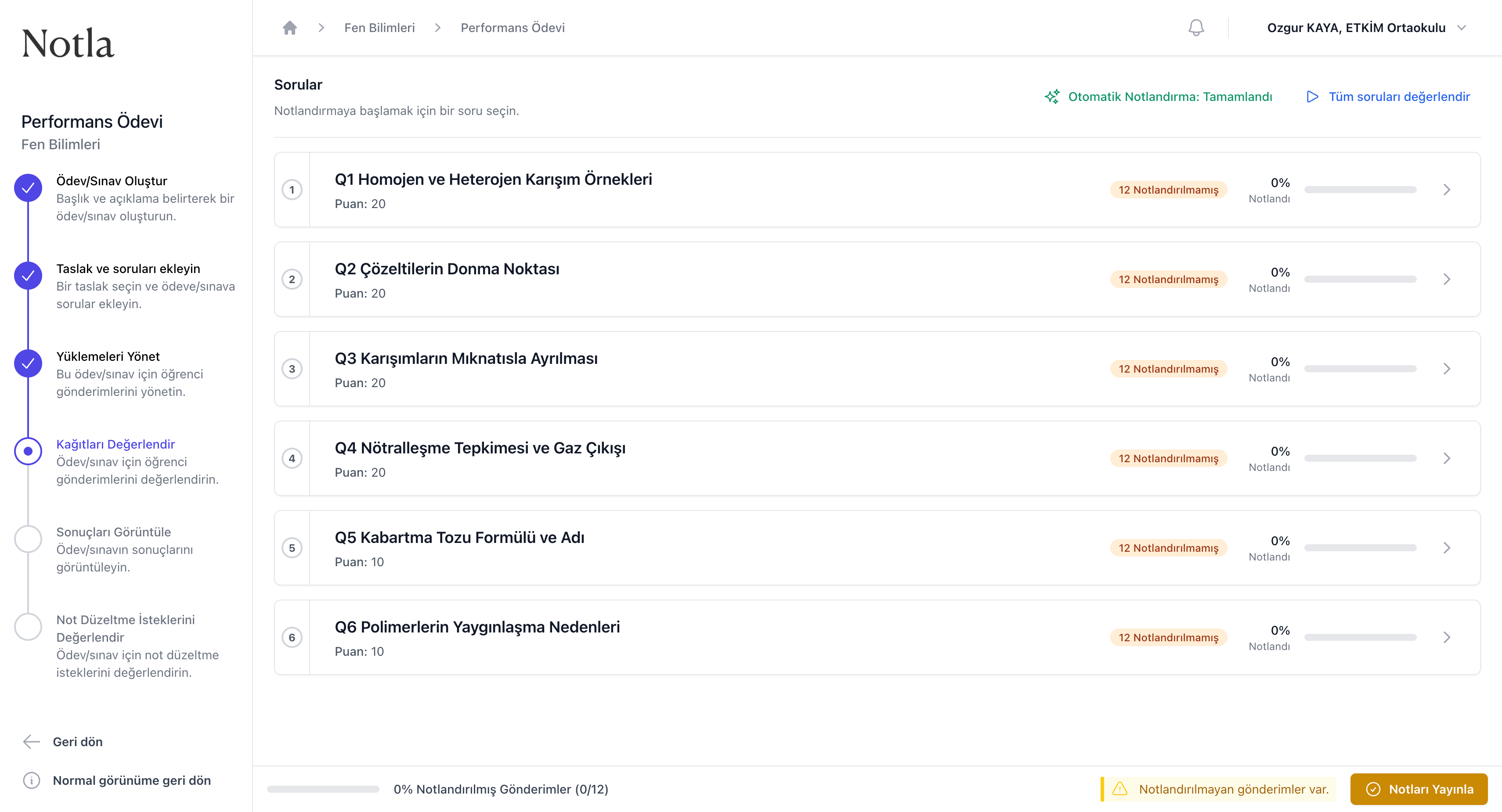
- Soru listesi, her sorunun değerlendirme durumunu ve ilerlemesini gösterir.
- Sağ üstteki Otomatik Notlandırma bağlantısından AI çalıştırma ekranına geçilir.
Soruları seç ve başlat
Otomatik notlandırma ekranında değerlendirilecek soruları işaretleyin. Tüm sorular hazırsa Tümünü Seç bağlantısını kullanıp yeşil çalıştırma düğmesiyle süreci başlatın.
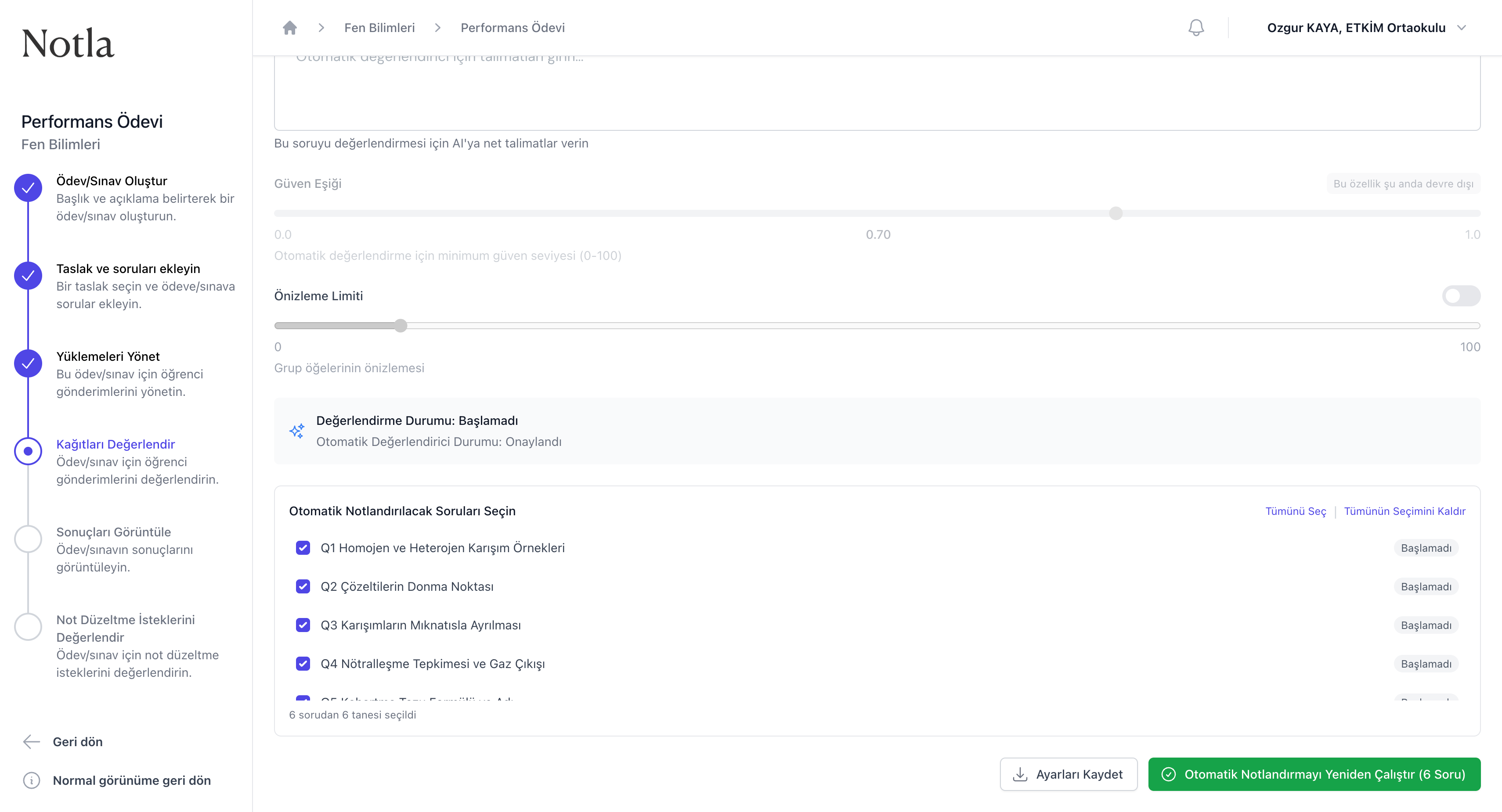
- Tümünü Seç ve Tümünün Seçimini Kaldır bağlantıları toplu seçim yapar.
- Durum rozetleri sorunun daha önce işlenip işlenmediğini gösterir:
Başlamadı,İşlem Devam EdiyorveyaTamamlandı. - Gerekirse özel talimat ve güven eşiği ayarlarını kaydedebilirsiniz; kısa akışta varsayılan ayarlar yeterlidir.
- Otomatik Notlandırmayı Yeniden Çalıştır (N Soru) seçili soruları işler ve sonuçları inceleme adımına hazırlar.
- İşlem tamamlanınca düşük güvenli cevapları inceleyip soruları onaylayın.